
Set the invoice rules
Choose identity, numbering, buyer fields, and tax configuration.
Collect buyer billing details, apply your approved GST, VAT, or custom tax lines, and deliver a numbered PDF invoice connected to the original event order.
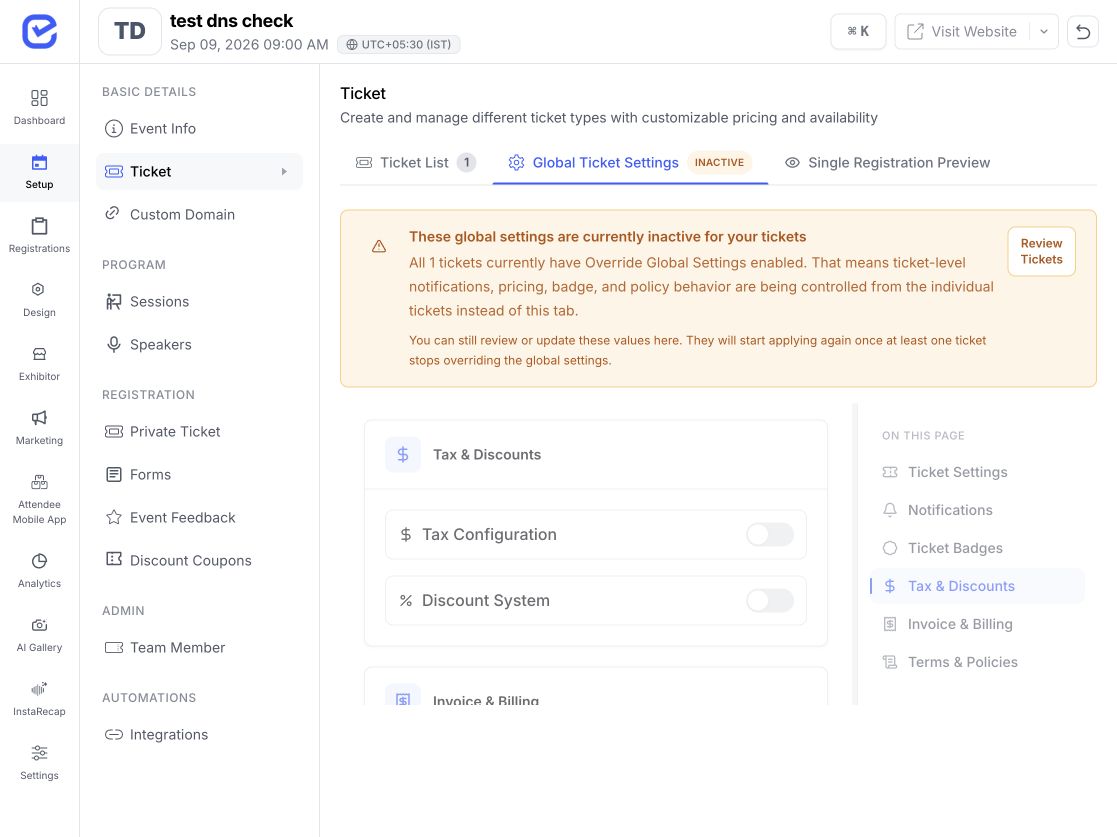
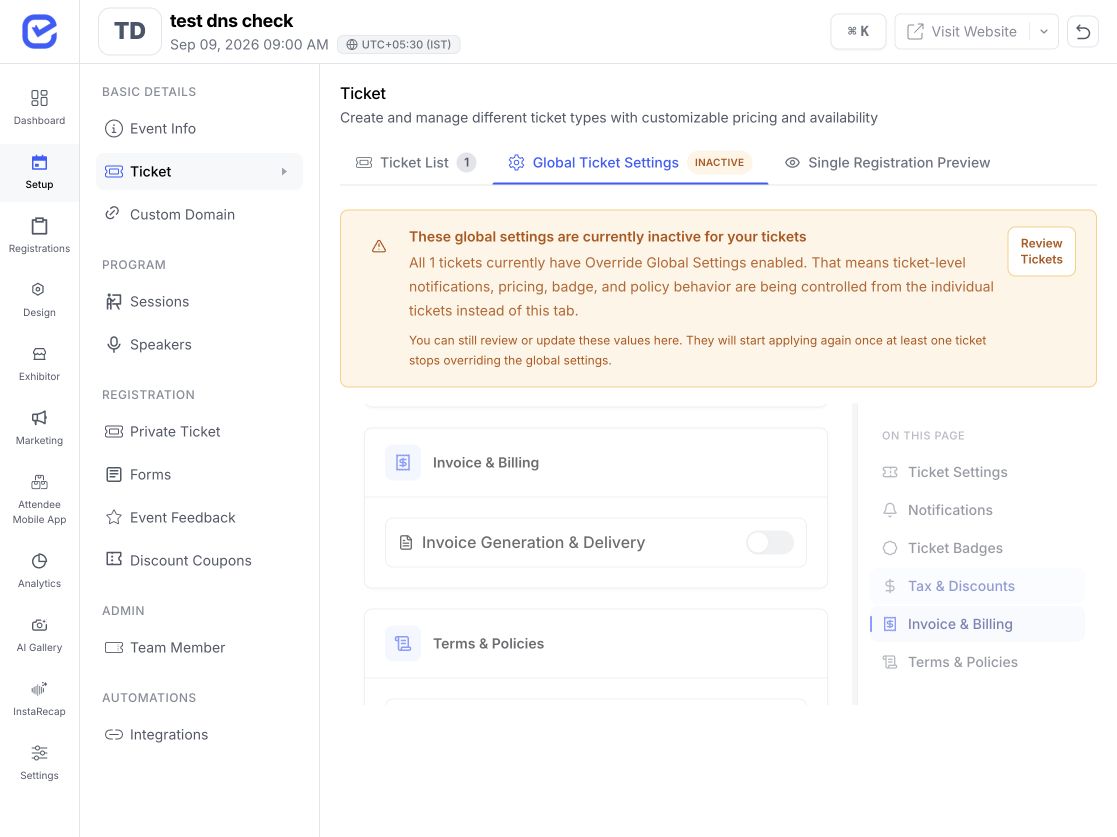
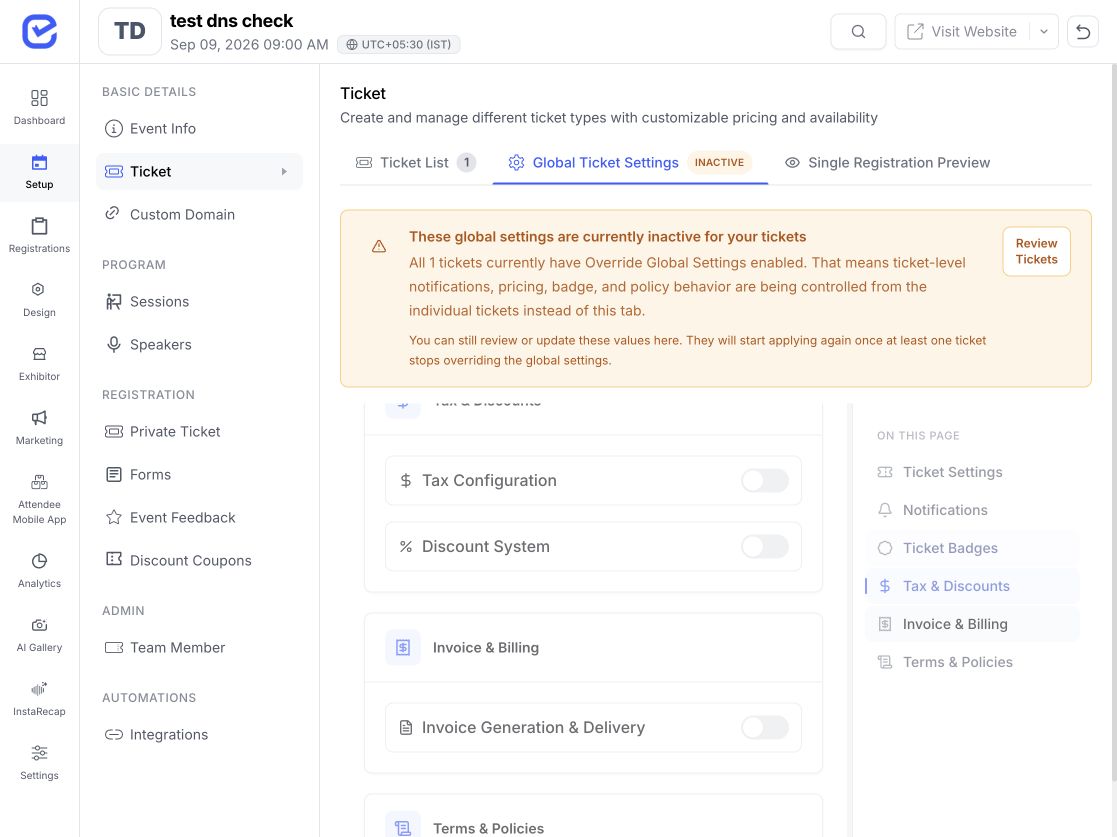
The invoice starts from the paid registration or ticket order, not from a disconnected spreadsheet or document template.
Choose identity, numbering, buyer fields, and tax configuration.
Show the invoice option in the supported registration or checkout journey.
Retain ticket, amount, currency, buyer, and tax context.
Create the PDF and send it through the configured order workflow.
Set the fields your finance team has approved before opening ticket sales.
Use Invoice, Tax Invoice, Receipt, or another approved title.
Adapt the buyer section label to the document type.
Show the configured billing company, address, and logo.
Name the reference field the way your workflow requires.
Configure the invoice prefix and starting number so generated documents carry a consistent order-linked reference.
Add the approved event or document prefix.
Choose where the generated sequence begins.
Control how the number is named on the document.
Keep the invoice reference with the source transaction.
When the buyer requests an invoice, surface the configured fields in the same journey instead of chasing them after payment.
Collect the legal or trading name supplied by the buyer.
Use GSTIN, VAT number, TRN, or another configured label.
Capture the address needed for the organizer's document.
Choose which supported B2B fields must be completed.
Show the configured buyer details in the available preview flow.
Retain invoice-request context with the registration or order.
Your team supplies the tax names and percentage rates; EventHex applies that configuration to the supported checkout and invoice breakdown.
Show the base ticket price and add the configured tax lines to the order total.
Best when tax is added at checkoutTreat the displayed ticket price as inclusive and show the configured tax portion in the breakdown.
Best when the advertised price already includes taxEventHex applies organizer-defined rules; it does not select the legally correct rate or jurisdiction for you.
The product mechanism stays the same; the labels, IDs, and rates change with the organizer's approved setup.
Use GST and GSTIN labels when they are required for the event's approved invoice setup.
Use VAT, TRN, or another locally approved label and configured rate.
Use VAT and the billing fields approved for the organizer's UK invoice workflow.
Use the applicable organizer-defined sales-tax label or no tax line where advised.
Keep the event currency and buyer details visible without implying tax determination.
Adapt supported labels to the document and market your team has validated.
Generate the available invoice PDF from the order data and send it through the configured invoice-delivery path.
Use the configured organizer identity and invoice labels.
Show the source purchase and amount context.
List the configured tax names, rates, and calculated values.
Send the generated document to the buyer through the supported order workflow.
EventHex gives organizers the fields and document workflow; the organizer remains responsible for choosing valid labels, rates, numbering, and required information.
Invoice identity, supported buyer fields, tax lines, price mode, numbering, PDF, and delivery.
Business identity, tax names, rates, required fields, and event setup.
Jurisdiction, tax treatment, statutory wording, and filing obligations.
The selected gateway's payment, settlement, and account requirements.
Invoice data starts in registration and follows the payment and order path.
Collect buyer and attendee details in the chosen sign-up flow.
Configure ticket pricing, capacity, sale windows, and access rules.
Connect the order to Stripe, Razorpay, or Tap and manage payment/refund state.
Review the wider event portfolio outside the individual invoice workflow.
Apply one approved setup per event and market.
Give delegates and corporate buyers an order-linked invoice.
Support exhibitor or attendee ticket purchases with billing detail.
Handle member and company registrations with invoice requests.
Keep internal or customer-event documents consistent.
Connect paid ticket orders to buyer finance requirements.
Reuse the workflow while configuring the correct regional labels.
Yes. In the supported flow, organizers can enable invoice requests and collect the configured company, tax-ID, and billing-address details.
Yes. Your team configures the supported tax names and percentage rates. GST and VAT are examples; EventHex does not decide which tax applies.
You can configure the supported invoice prefix, starting number, document title, and invoice-number label.
No universal tax-determination engine was verified. Your finance or tax adviser should approve the labels, rates, treatment, and required fields.
The supported invoice workflow generates an order-linked PDF and can send it through the configured delivery path. Confirm the exact trigger and template in the demo.
Those invoice-document capabilities were not verified end to end. Payment refunds and event finance reporting belong to the Payment Processing workflow and should not be presented as proof of credit-note automation.