
Describe the Form
Name the event task and the information you want from each respondent.
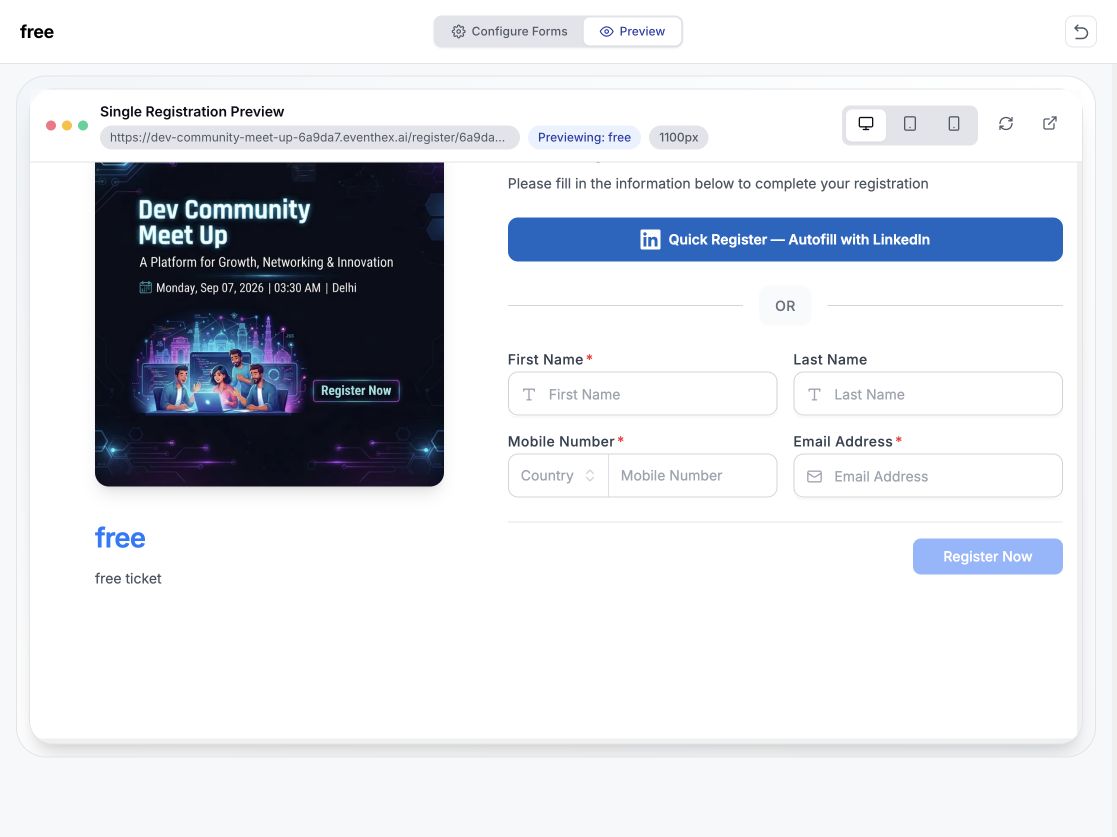
Describe the information you need. EventHex drafts the fields inside the same visual builder used for ticket registration, standalone forms, and event feedback. Review every question, preview the attendee experience, and publish when it is ready.
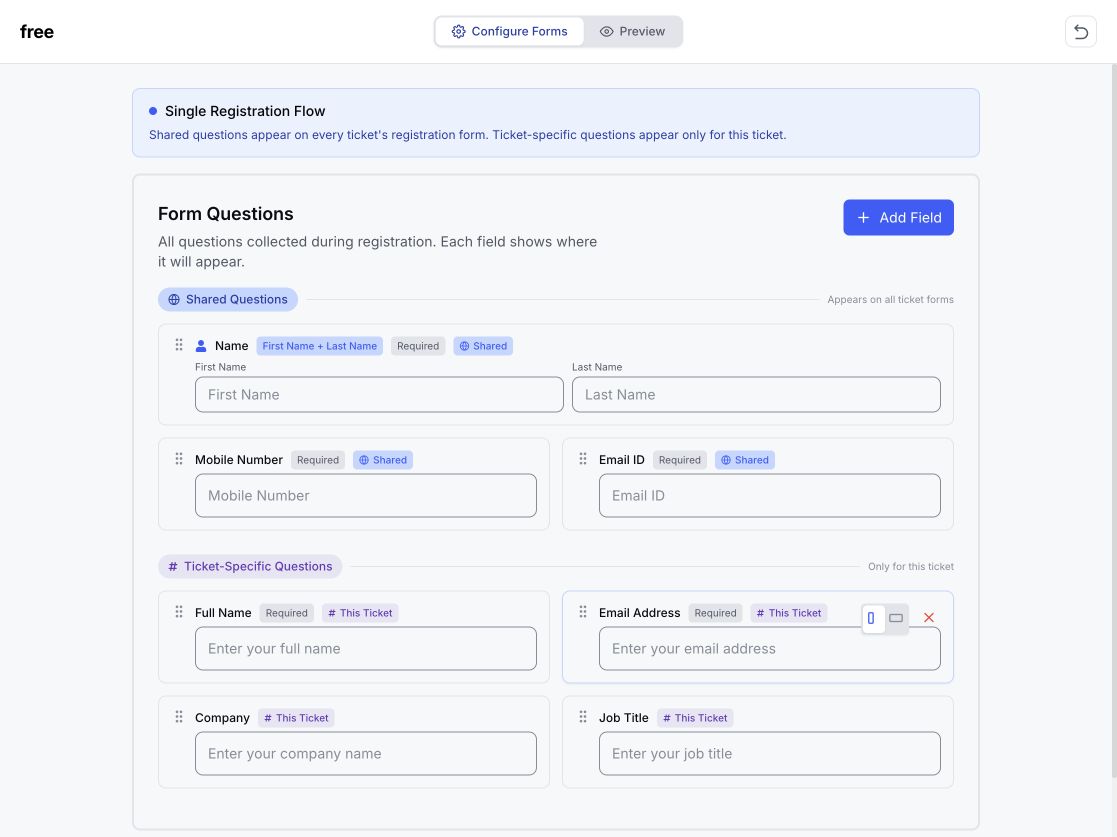
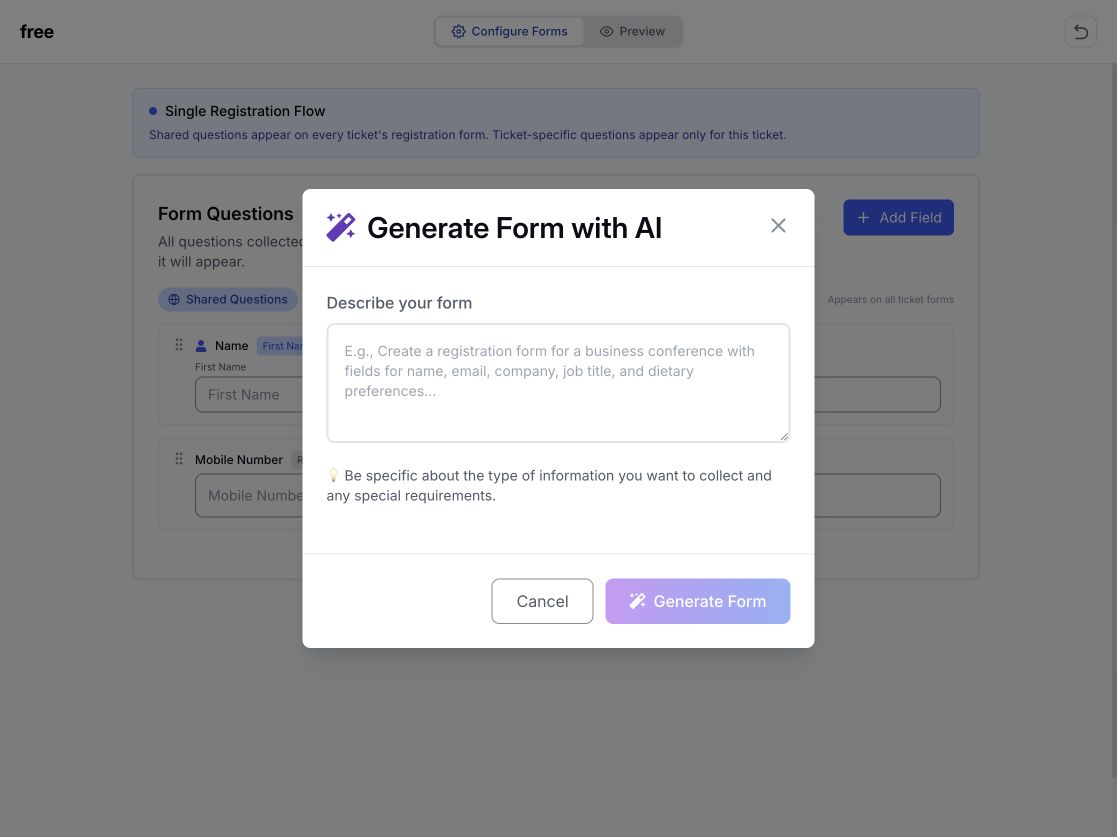
The AI step creates a field draft from your description. The organizer decides what stays, what changes, and what gets published.
Name the event task and the information you want from each respondent.
EventHex selects suitable standard or custom field types and drafts relevant options where needed.
Review labels, required fields, choice options, and the information the form will collect.
Add, remove, edit, resize, or reorder fields before opening the attendee preview.
Build questions where they belong instead of moving form data between disconnected tools.
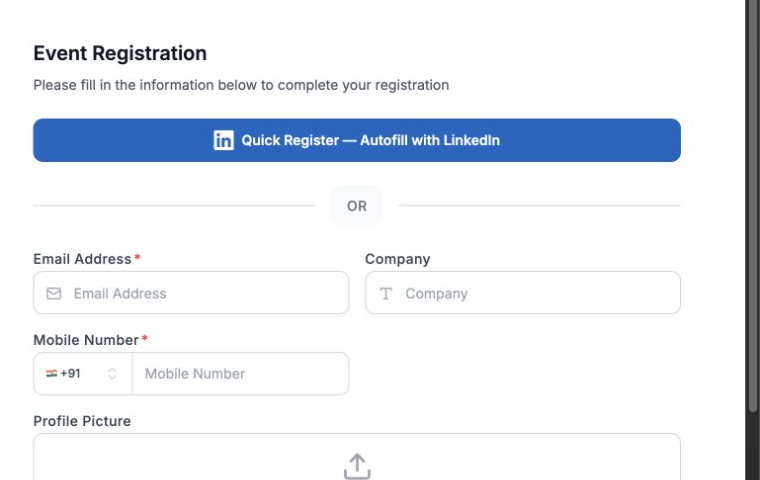 Ticket formRegistration questions Ready to review
 Add shared event questions and ticket-specific questions to the registration journey.
Collect buyer information once, then ask the right questions for each attendee and ticket.
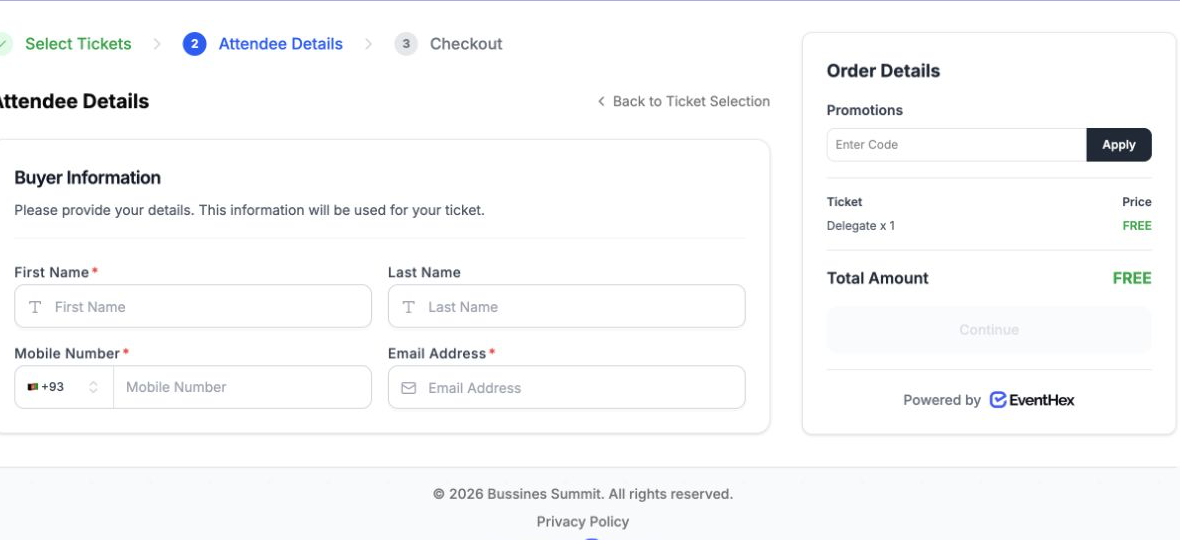 Buyer detailsCollected once Attendee questions
  Public formAttendee preview Share by link
 Create a public form for applications, enquiries, surveys, or other event workflows that need their own link.
Build NPS, rating, choice, and open-text questions, then connect the responses to the event's feedback workflow.
 NPS + ratingFeedback fields Responses connected
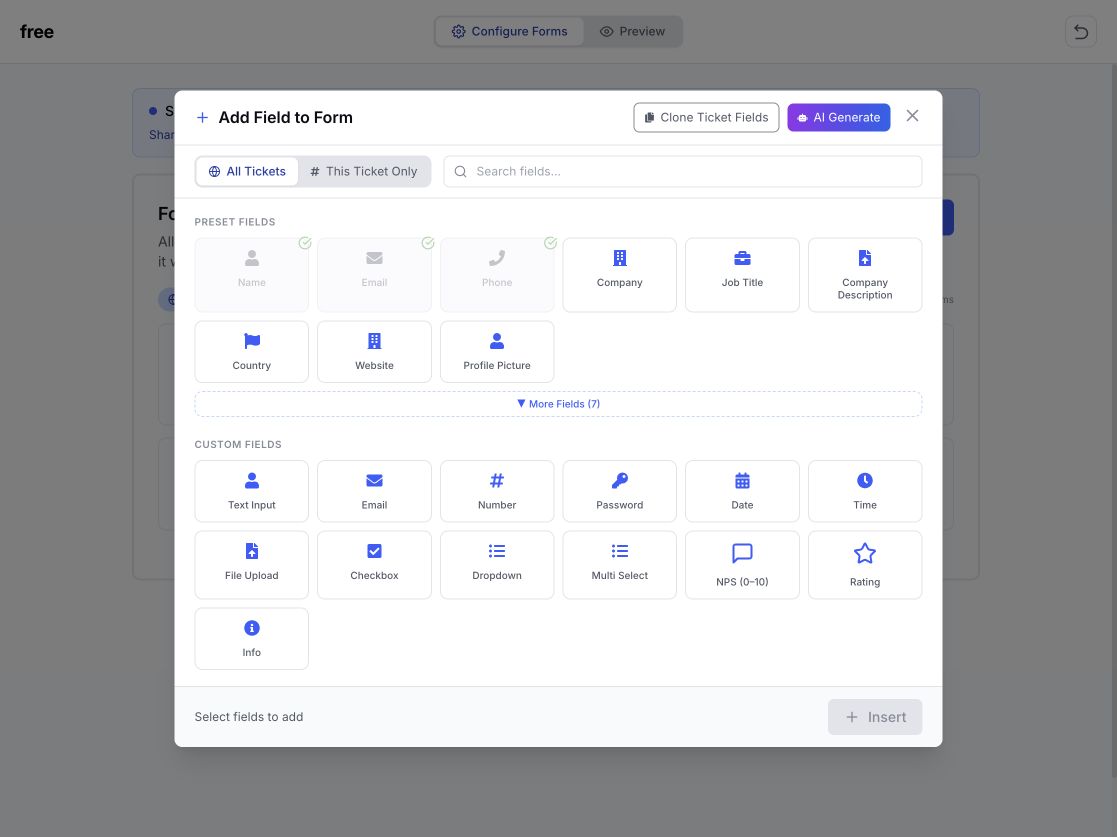
 Start with familiar attendee details, then add the input type that fits the decision or response.
Use name, email, phone, company, job title, country, website, and profile fields.
Use short or long text, dropdown, checkbox, and multi-select questions with the options your event needs.
Ask for structured values that are easier to validate and review.
Collect supported uploads for applications, profiles, or event materials.
Add feedback scores or information text that explains the next part of the form.
EventHex changes the form-builder context to match the registration flow selected for the event.
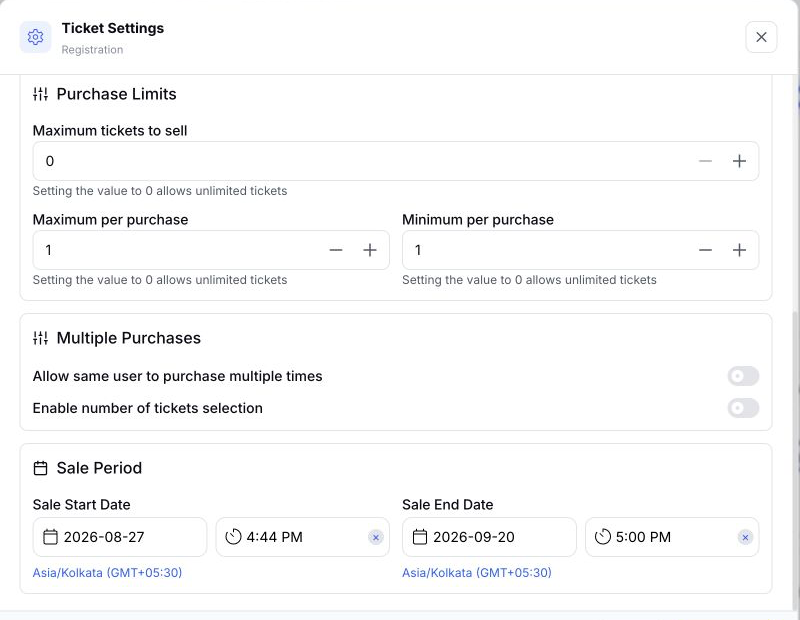
Ask shared questions across ticket forms, then add questions that appear only for a selected ticket.
Registration scope Collect shared buyer details once and collect ticket-specific information for each attendee in the order.
Checkout scope For the full flow decision, explore Event Registration. This page focuses on how the builder shapes questions inside each flow.
It turns a typed description into a draft set of form fields. The draft can include standard attendee fields, custom questions, suitable input types, required-field choices, and options for selection fields. The organizer reviews and edits the result before publishing.
Yes. EventHex uses the builder for ticket registration questions and for standalone event forms. Standalone forms can also support event feedback workflows.
Yes. In Single Registration, shared questions can appear across ticket forms while ticket-specific questions stay with one ticket. In multi-ticket Checkout, buyer details are collected once and ticket-specific questions are collected for each attendee.
The verified field palette includes attendee details, text and long-text answers, numbers, dates, times, files, images, checkboxes, dropdowns, multi-selects, NPS, ratings, and information content.
Yes. You can change field copy, required settings, available validation, choices, width, and order. You can also add or remove fields before publishing.
Yes. When event languages are configured, field labels, placeholders, supporting copy, and select-option labels can carry language-specific values. The organizer can review the generated translations.
Use its public event-domain link, open it for review, or present its QR code. A selected standalone form can also be placed in a form section on an EventHex website page.
EventHex stores the response with the event and form. Organizers can view submission counts, review the answers in a response table, and export the response data.
No. AI creates the field draft. The organizer reviews the questions and uses the form builder's preview and publish flow.